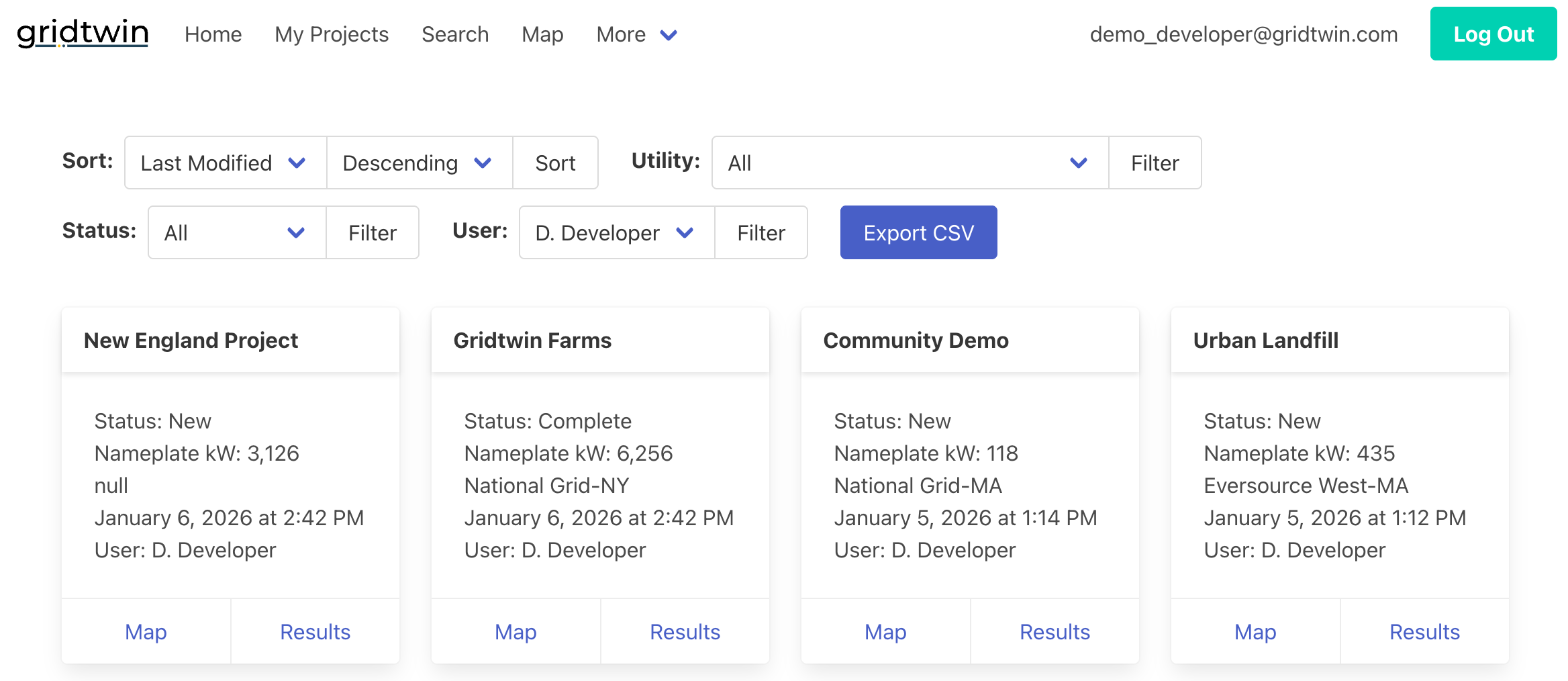
Training & Tutorials — Introduction
Start here for a quick overview of Gridtwin Software and saving projects.
Creating an Account
Create a Gridtwin account to access mapping, project management, and interconnection analysis tools.
- Create a Gridtwin account to access mapping, project management, and interconnection analysis tools
- Sign up, verify your account, and get started exploring Gridtwin software within minutes
- Join Gridtwin organization to collaborate with colleagues
Steps
- Navigate to gridtwin.energy and click Sign Up
- Enter your email and password, then submit
- Check email and enter the verification code
- Complete your profile details
- Join or create your organization
- Accept the Terms of Service to finish
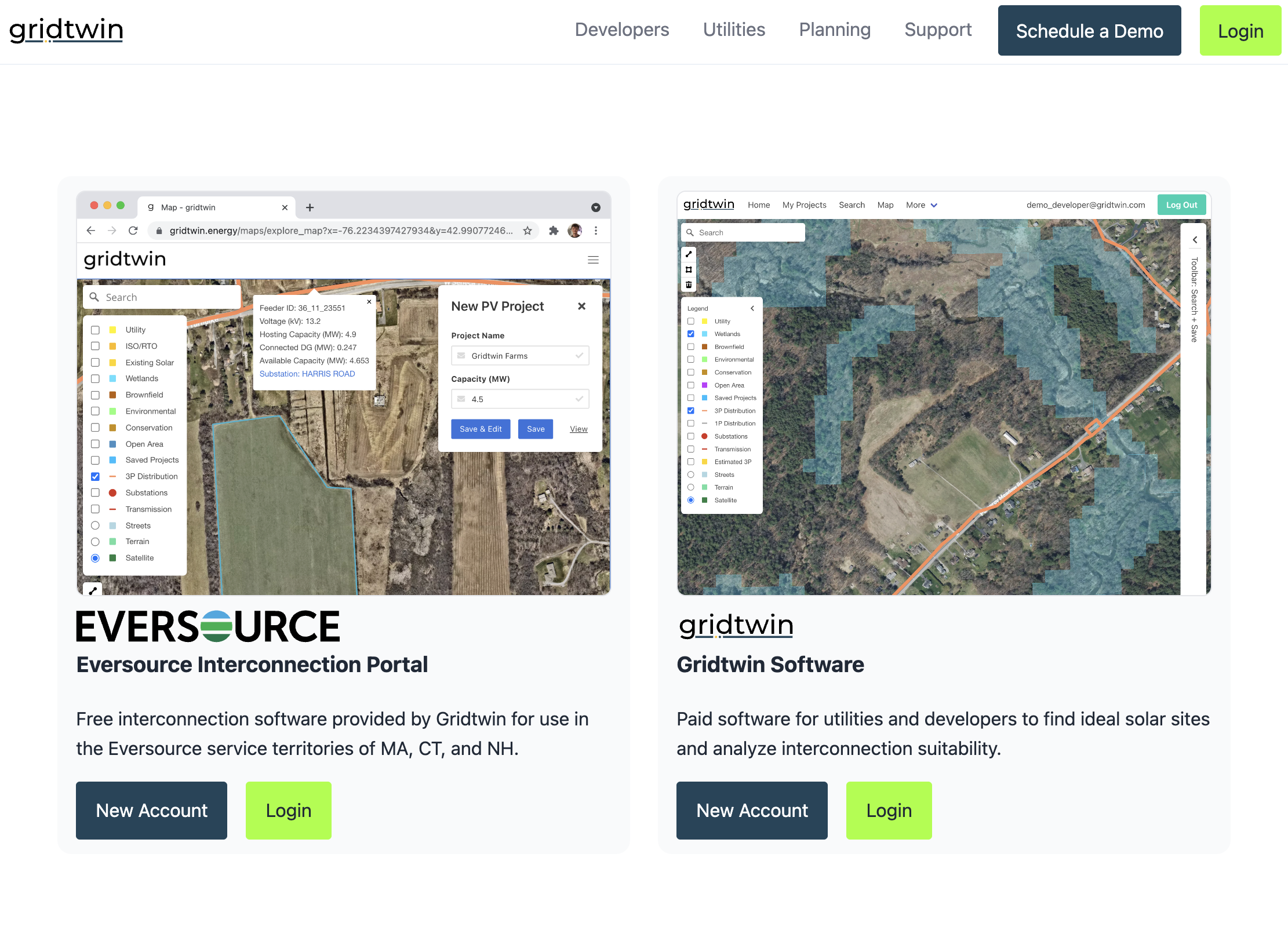
Exploring the Map
The Gridtwin map contains data for hundreds of utilities across the United States.
- The Gridtwin Map allows quick navigation to places of interest
- Toggle overlays like hosting capacity, utility boundaries, environmental land classifications, and more all in one place
- Inspect data about feeders, substations, and transmission line segments
Steps
- Open the map from the home page
- Search for a town or address
- Pan and zoom to explore feeders and substations
- Toggle hosting capacity and voltage overlays
- Click a feature to view details
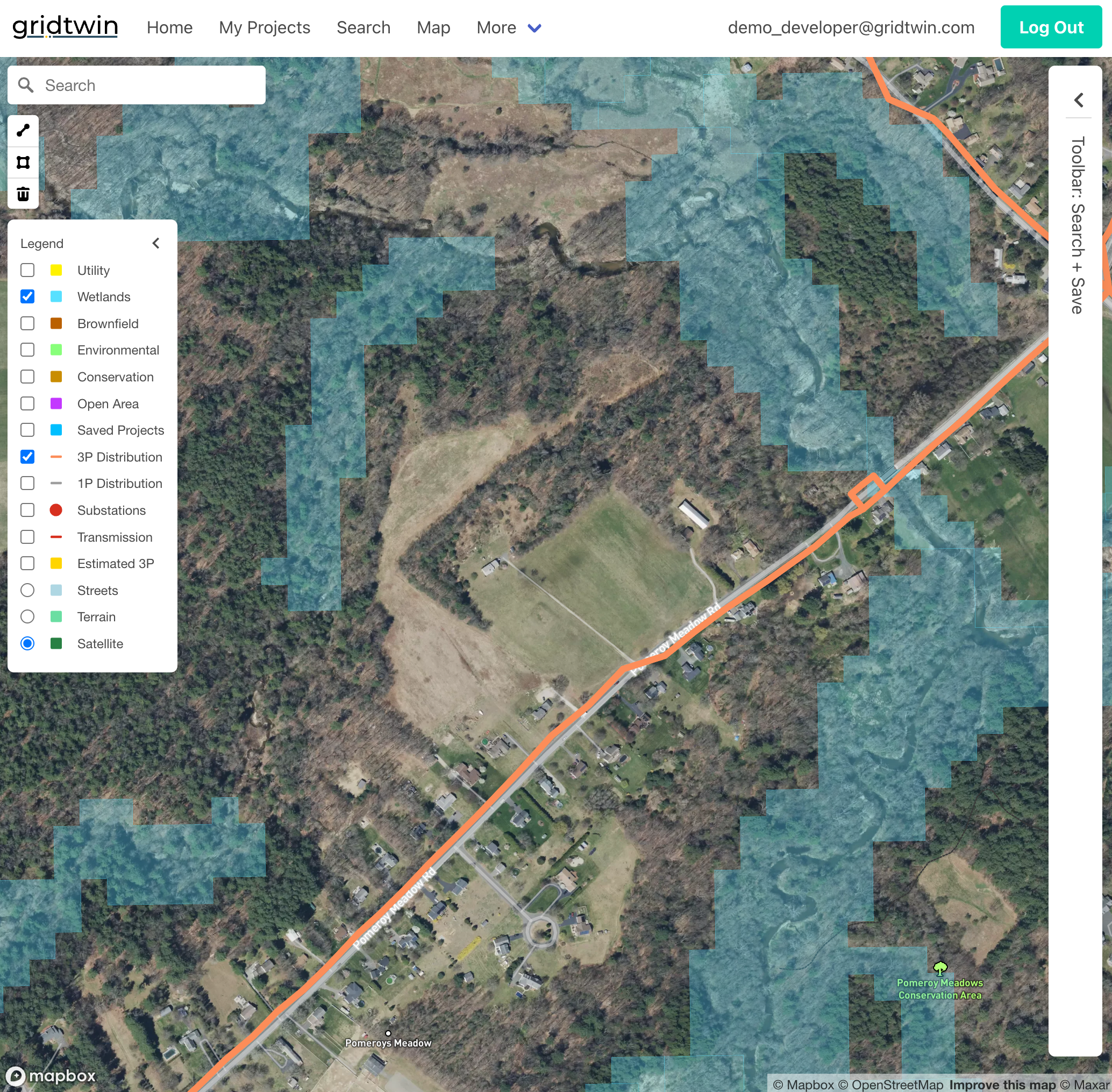
Saving Custom Projects
Save sites and scenarios, compare interconnection options, and share with teammates.
- Create your own tailored project site to analyze
Steps
- From the map, navigate to the site you’re interested in
- Using the map’s polygon tool on the left, a custom project boundary can be drawn and saved
- Custom sites, like any project, can be further edited and re-analyzed for different scenarios in ‘My Projects’
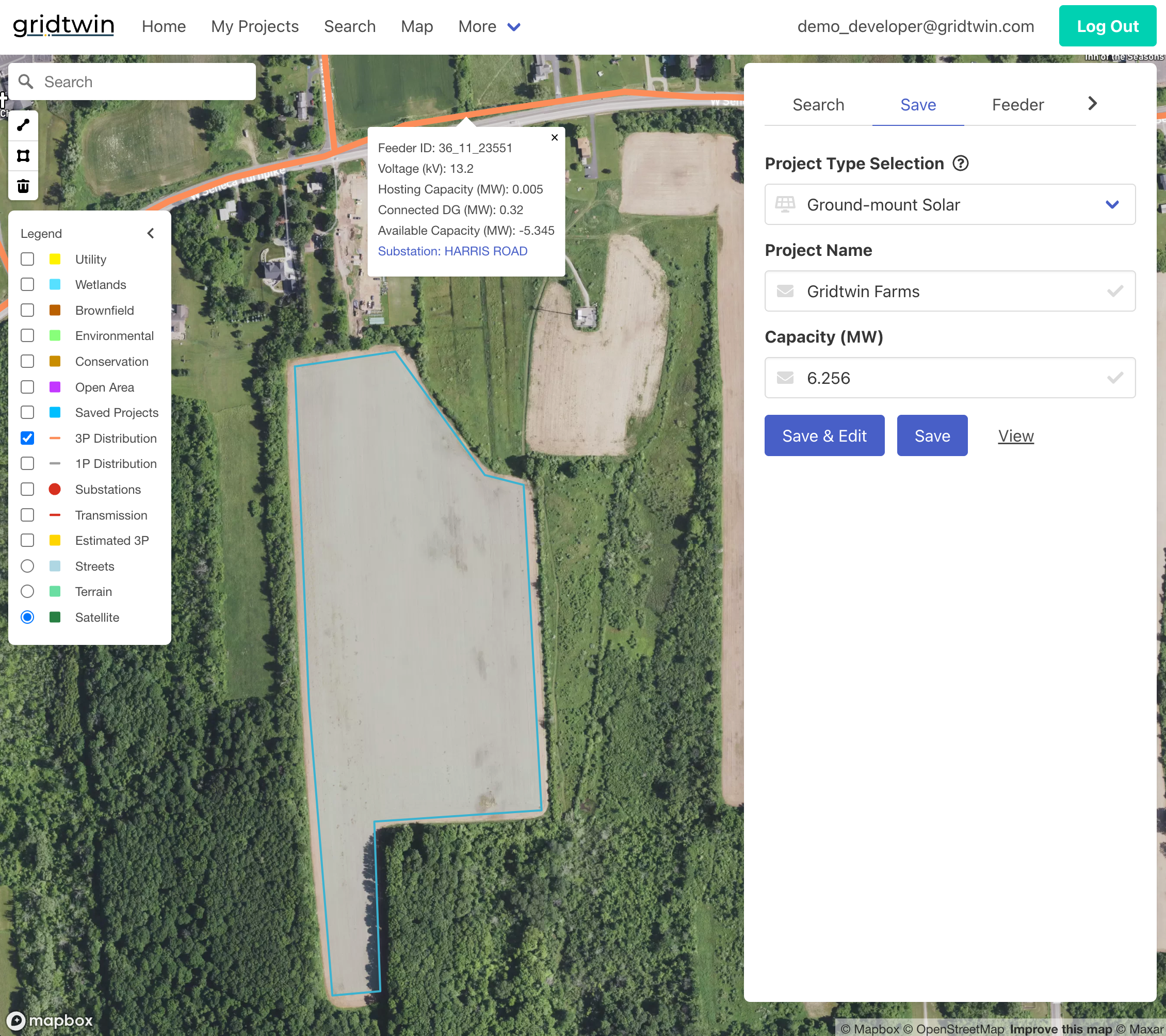
Automated Interconnection Estimates
Run automated interconnection analyses to estimate costs and identify required upgrades.
- Run, edit, and refresh interconnection simulations
- Review cost summaries and line-item breakdowns
- View hosting capacity status and required upgrades
Steps
- Open a site from ‘My Projects’ and select ‘Start’ under the ‘Start New Analysis’ subheading
- Results should be available within five minutes
- Review line-item costs and upgrades
- Export or share the summary
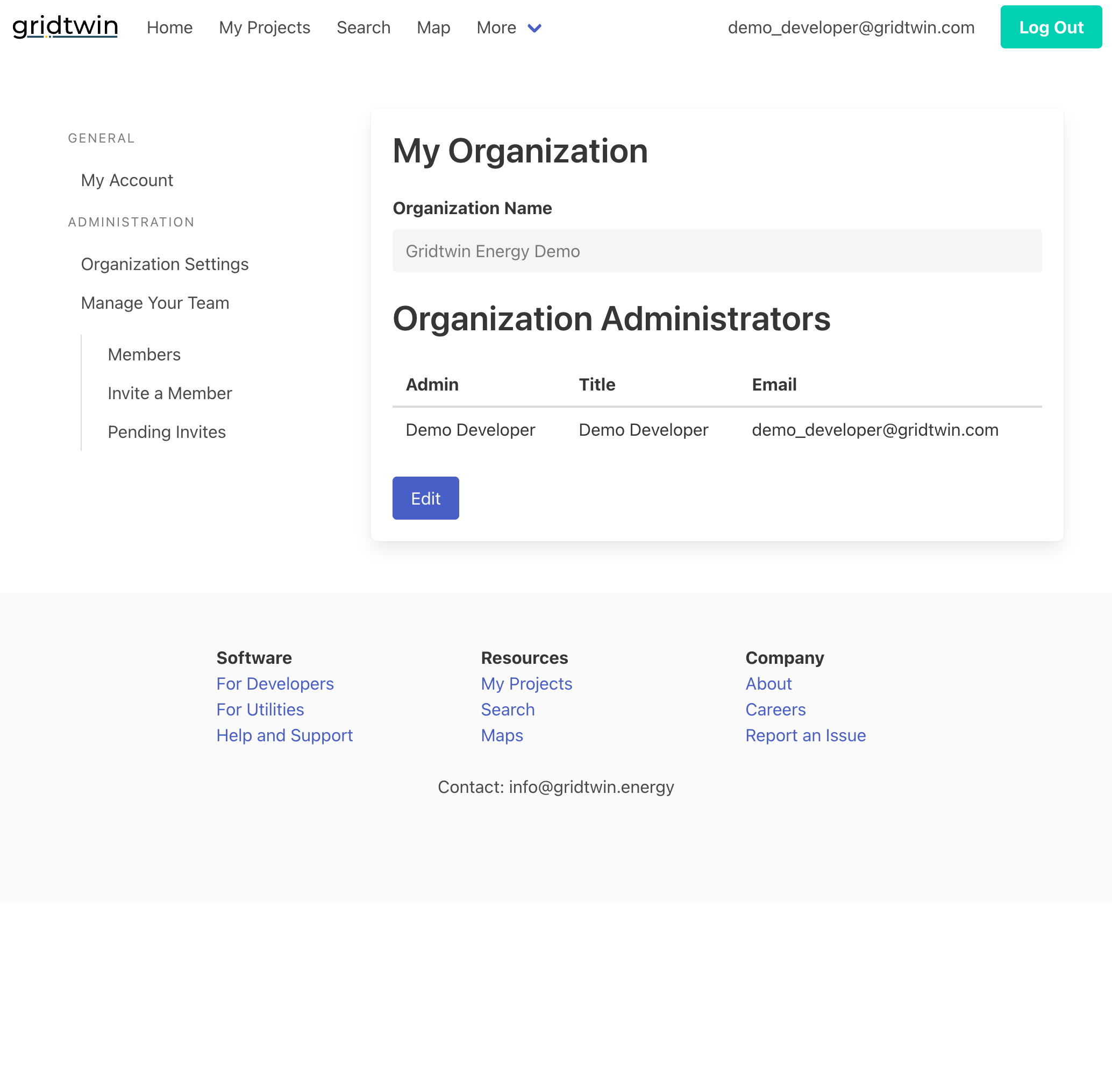
Organization Management
Organizations allow teams to collaborate on projects and manage access within Gridtwin.
- Use the ‘Invite a Member’ feature to invite team members with a shared email domain
- Non-Admin users can request to join an organization upon account creation, and Admins can accept or reject join requests
- Admins can edit user roles and account details, and delete users when necessary
Steps
- Open Organization settings
- Invite members by email domain
- Review and approve join requests
- Assign roles to members
- Deactivate or remove accounts when needed
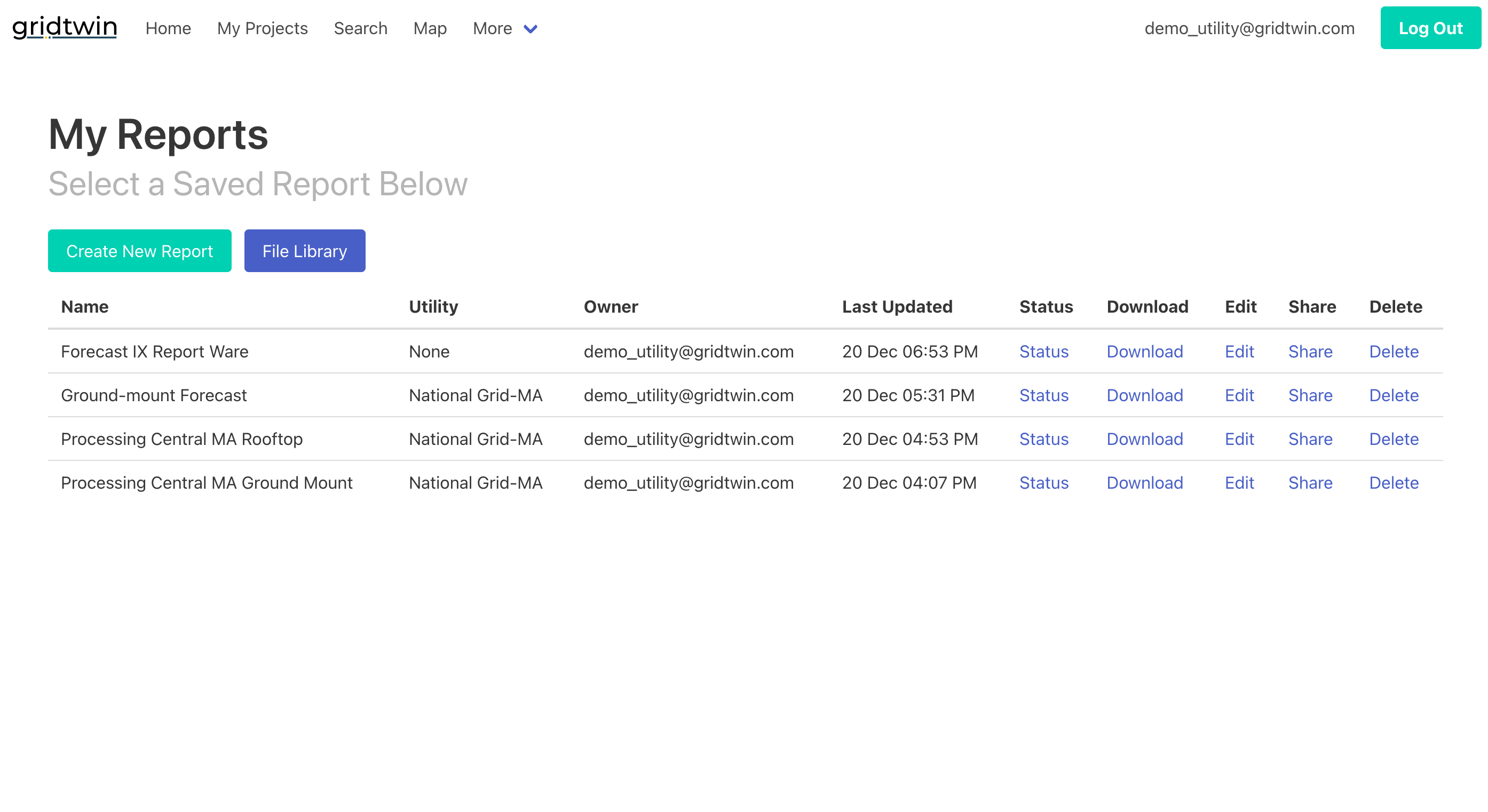
Navigating the Interface
Use the menu bar to access all major features of the platform after logging in.
- Access My Projects
- Search for new projects
- Explore the interactive map
- Find Help and Support resources
- Log out or return to the home page
Steps
- Sign in and review the top menu
- Explore the Map for capacity details
- Use Search to create a new project
- Open My Projects to view saved work
- Visit Help & Support for documentation
- Log out from the profile menu
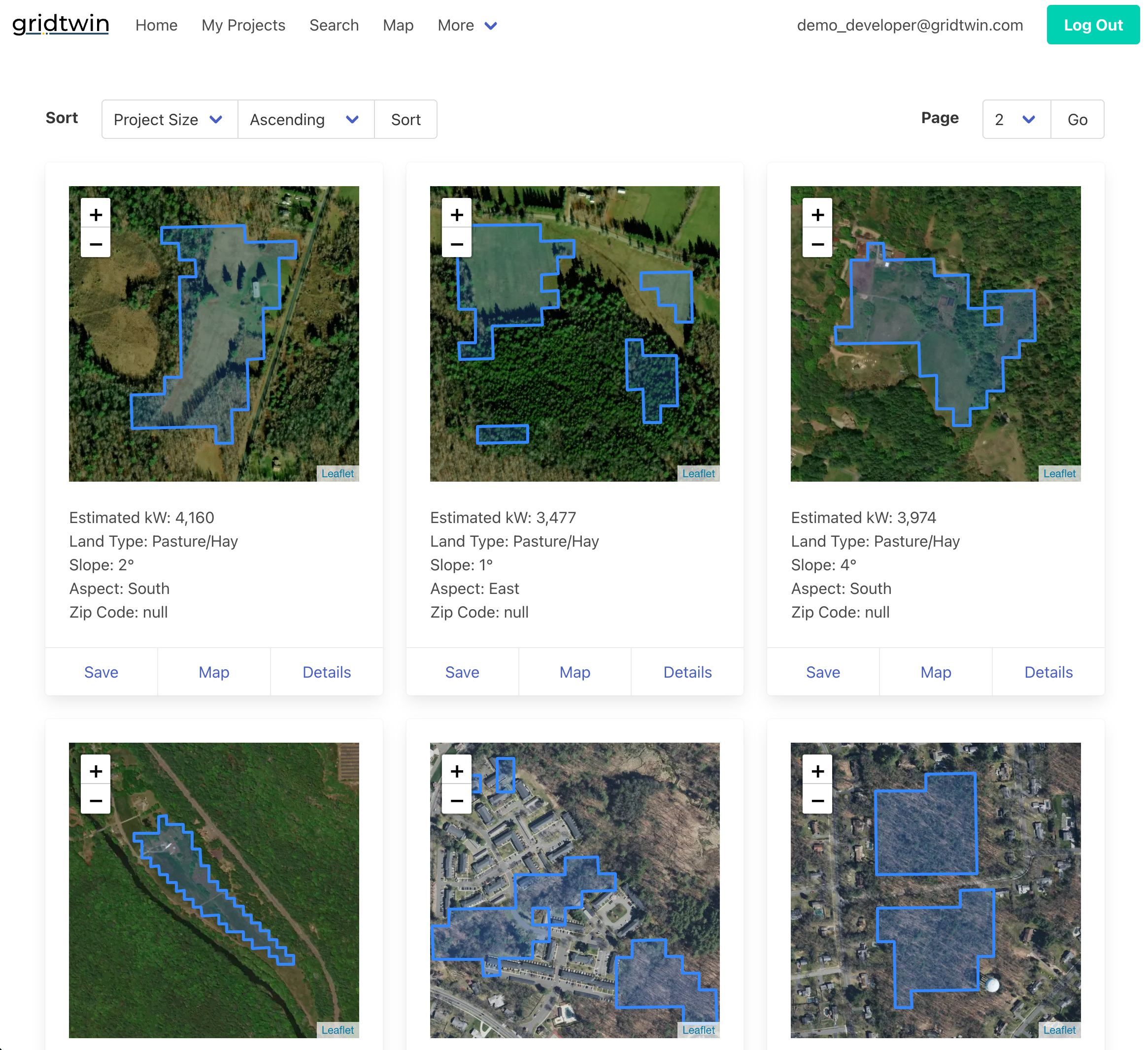
Searching for Parcels
Search tools help identify parcels suitable for new solar projects based on customizable criteria.
- Filter parcels by utility territory, project size, and hosting capacity criteria
- View identified ground-mount solar areas and further sort them as needed
- Save parcels to revisit later, edit, and analyze
- Review parcel ownership and interconnection details
Steps
- Open the ‘Search’ from the top taskbar
- Set utility territory and size filters
- Apply hosting capacity criteria
- Review candidate parcels attributes as well as their placements on the map
- Save promising parcels to 'My Projects''
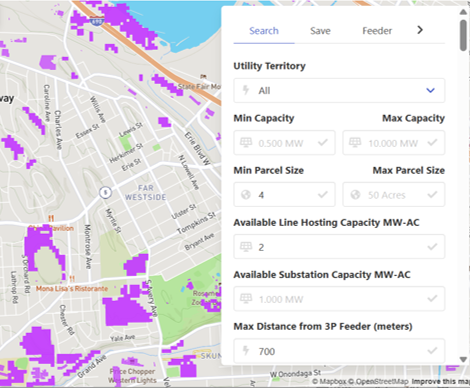
Searching Within the Map
Visualize potential projects while performing a detailed, highly customizable parcel search
- Map-based search tools help identify parcels suitable for new solar projects based on customizable criteria
- Peruse sites that suit your specifications
- Save parcels to revisit later, edit, and analyze
- Review parcel ownership and interconnection details
Steps
- Open the Map and navigate to your area of interest
- Select the purple ‘Open Area’ map layer to display parcels suitable for ground-mount development
- Fill in your site criteria in the parcel search feature on the right side of the map
- Select ‘Filter’ after inputting your criteria
- Review the suitable parcels by scrolling down within the search tool, or by panning around the map
- Save promising parcels to your projects
Managing Projects
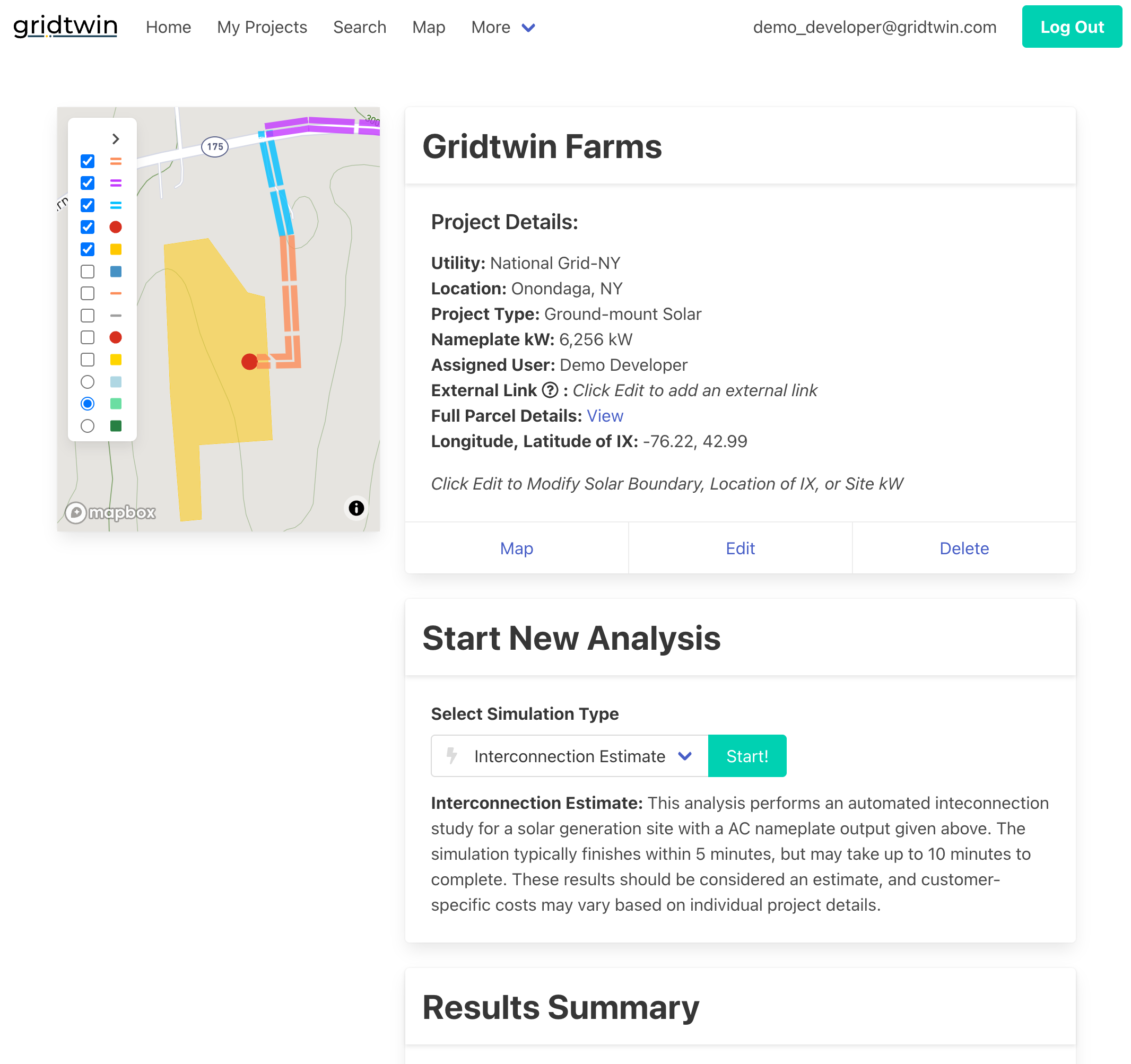
Projects allow users to organize sites, view results, and export data.
- All saved sites and simulations are accessible within the 'My Projects' page
- Projects can be organized and filtered to quickly find anything of interest
- Open projects on the map, or edit and analyze them
- Export project data and results to CSV files
Steps
- Open My Projects to browse items
- Filter or sort to find a specific project
- Open a project to view details
- Export data as needed